
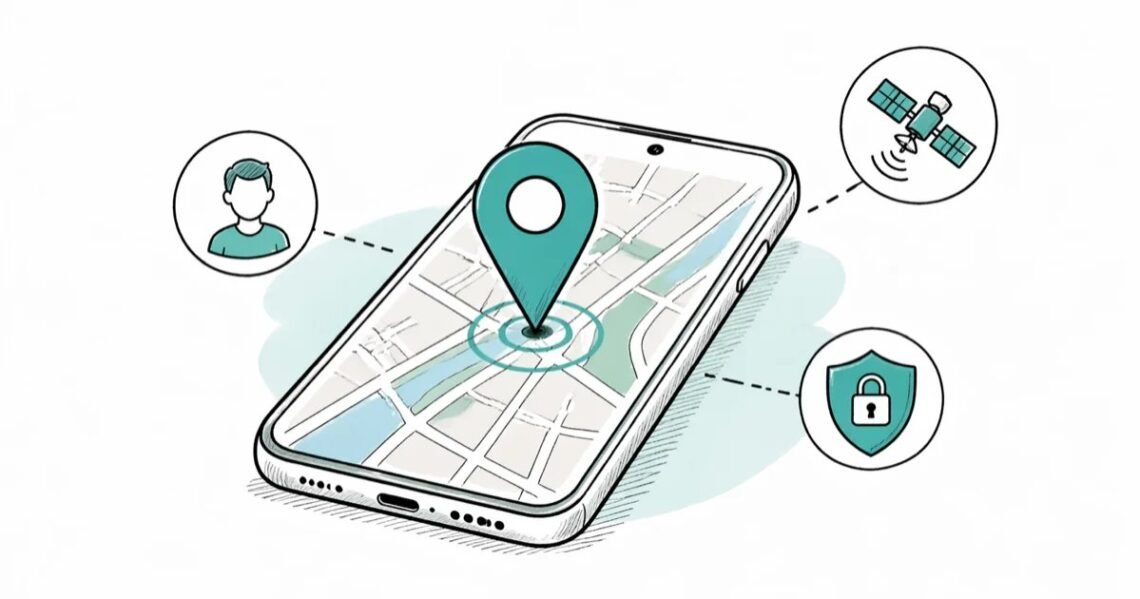
Your torch app doesn’t need to know where you live. Yet somehow it asked, and you tapped “Allow” without thinking — like we all do. Location data is among the most sensitive information your phone holds: it reveals where you live, work, worship, who you visit, and your daily routines. Here’s how to stop apps tracking your location on your phone, on both iPhone and Android, and which apps genuinely need it.
Why this matters more than you think
Location history is a diary you didn’t mean to write. Data brokers buy location data from apps, bundle it, and sell insights to advertisers, insurers and who knows who else. Investigations have repeatedly shown this data can identify individuals — “anonymised” location trails routinely lead straight to home addresses. Beyond commercial use, there’s the personal safety angle: an abusive ex with access to a shared account, a stalker via a compromised app. You don’t need to be paranoid to want control over who knows where you are. Under UK GDPR, apps need your consent to collect location — but consent buried in a 40-page terms screen you tapped through isn’t meaningful choice. Take it back manually.
iPhone: lock it down in two minutes
Go to Settings > Privacy & Security > Location Services. You’ll see every app that’s requested location, with its current permission. Tap through and set:
- Never — for anything that has no business knowing your location: games, shopping apps, social media (mostly), utilities, that torch app.
- Ask Next Time / When I Use the App — for apps that need location occasionally: delivery apps, ride-hailing, weather.
- Always — almost nothing needs this. Genuine exceptions: navigation apps while navigating, some home-automation geofencing, Find My. If an app demands “Always” and you can’t see why, that’s a red flag — deny it and see if the app still works (it usually does).
Two more iPhone settings most people miss:
- Precise Location toggle: On each app’s location page, you can switch off Precise Location — the app gets your approximate area (good enough for weather, local news, store finders) instead of your exact coordinates. Use this liberally.
- System Services: Scroll to the bottom > System Services. Review these — turn off “iPhone Analytics”, “Popular Near Me” and anything else non-essential. Keep Find My iPhone and Emergency SOS on.
Also check Settings > Privacy & Security > Tracking — turn off “Allow Apps to Request to Track” entirely to block cross-app tracking (this is Apple’s App Tracking Transparency — the feature that cost Meta billions).
Android: the same idea, slightly different menus
Go to Settings > Location > App location permissions (wording varies by manufacturer — Samsung: Settings > Location > App permissions). You’ll see apps grouped by Allowed all the time / Allowed only while in use / Ask every time / Not allowed. Work through the list:
- Set games, shopping and social apps to Don’t allow.
- Set delivery, maps and ride apps to Allowed only while in use.
- Reserve Allow all the time for almost nothing.
Android also has Precise vs Approximate location (Android 12+): when an app requests location, choose Approximate unless it genuinely needs exact positioning. And check Settings > Privacy > Ads — reset your advertising ID and opt out of ads personalisation while you’re in a privacy mood. Google’s own Location History (in your Google Account > Data & Privacy) is worth reviewing too — pause it if you don’t want Google keeping a timeline of everywhere you’ve been.
Which apps actually need your location?
Be honest about each one:
- Need it: Maps/navigation, ride-hailing (while using), delivery apps (while using), weather (approximate is fine), Find My / device location, emergency apps.
- Sometimes need it: Camera (geotagging photos — turn off if you post photos publicly; geotags in social media photos reveal your home), smart home apps (geofencing), fitness trackers (for outdoor runs).
- Never need it: Games, flashlight, calculators, most shopping apps, music streaming, news apps, wallpaper apps. If any of these demand location to function, consider whether you trust the developer at all.
The sneaky ways apps track you anyway
Turning off location permission isn’t the whole story:
- WiFi and Bluetooth scanning: Phones can estimate location from nearby WiFi networks and Bluetooth beacons even with GPS off. Both iPhone and Android have settings for this (Location Services > System Services on iPhone; Location > WiFi/Bluetooth scanning on Android) — disable if you’re thorough.
- IP address: Websites see your approximate location from your IP address regardless. A VPN masks this if it bothers you.
- Photos you share: Geotags embedded in photos reveal exactly where they were taken. Strip them before posting publicly (most social apps do this automatically now, but messaging apps often don’t).
- Your Google/Apple account timeline: Even with app permissions locked down, your account-level location history may still be recording. Check and pause it in account settings.
Tracking your location: do a quarterly privacy audit
Permissions creep — every new app asks, and in a hurry we allow. Set a reminder every few months: spend five minutes in the location permissions screen removing access from apps you no longer use or that never needed it. Delete apps you haven’t opened in months entirely — fewer apps, fewer trackers. It’s the digital equivalent of changing the locks, and it takes less time than reading this article did.
The bottom line
Location tracking and your children
Kids’ apps are among the worst location offenders — free games aimed at children are notorious for bundling trackers. When setting up a child’s phone or tablet, go through location permissions together as part of the initial setup (see our guide on parental controls for tablets — the same principles apply to phones). Set everything to “Never” by default and only enable location for specific needs like a family safety app. Also talk to older kids about why: not as a lecture, but as digital literacy — understanding that “free” apps are often paid for with data is one of the most useful lessons a teenager can learn. And check their social apps’ location-sharing features (Snap Map, for instance) — broadcasting real-time location to friends is a safety issue worth a direct conversation.
The ICO’s location-data guidance explains your rights over location tracking under UK GDPR.
Stopping apps tracking your location takes five minutes: set most apps to Never/Don’t allow, give occasional-need apps “While using” only, switch off Precise location wherever approximate suffices, and kill cross-app tracking. Your maps will still navigate, your deliveries will still arrive, and your torch app will finally stop knowing where you sleep. Privacy isn’t about having something to hide — it’s about choosing who gets to know.



One comment on “How to Stop Apps Tracking Your Location on Your Phone”