
There’s a special kind of frustration that comes from watching your laptop take five minutes to boot while your phone does everything instantly. But before you spend £500 on a replacement, hear me out: most “slow” laptops aren’t dying — they’re just clogged up. I’ve revived laptops that owners were ready to throw away, and the difference after an afternoon’s work is genuinely startling. Here’s how to speed up your old laptop without buying a new one, starting with the free fixes and working up to the one upgrade that’s worth every penny.
First, figure out what’s actually slow
“Slow” means different things. Does it take ages to start up but run fine afterwards? That’s a startup-program problem. Is everything sluggish — opening files, switching tabs? That’s likely RAM or a full hard drive. Does it grind to a halt with ten browser tabs open? Almost certainly RAM. Take a minute to notice when the slowness hits, because it tells you which fix to prioritise. On Windows, Task Manager (Ctrl+Shift+Esc) shows what’s hogging your CPU, memory and disk. On a Mac, Activity Monitor does the same job. If your disk is pegged at 100% constantly, keep reading — that’s the classic symptom with the best fix.
Free fixes to speed up old laptop today
Kill the startup bloat. Half the programs on your laptop insist on launching at boot — updaters, chat apps, printer utilities, things you installed in 2021 and forgot. On Windows 11: Settings > Apps > Startup, and switch off everything you don’t need immediately at boot. This alone can cut boot time in half. On Mac: System Settings > General > Login Items.
Uninstall what you don’t use. Be honest: that free trial, the three photo editors, the game launcher — they’re taking up space and some run background processes. Windows Settings > Apps > Installed apps, sort by size, and be ruthless.
Tame your browser. Chrome with 40 tabs open will bring any old laptop to its knees. Use a tab suspender extension, close what you’re not reading, and consider switching to a lighter browser — Edge and Firefox are noticeably kinder to old hardware than Chrome these days. Also clear out extensions you don’t recognise; some are resource hogs or worse.
Check for malware. A sudden slowdown can be a sign of something nasty running in the background. Run a scan with a reputable free tool — see our guide to protecting your computer from viruses for free — before assuming the hardware is at fault.
Free up disk space. A drive that’s 95% full slows everything down. Aim to keep at least 15–20% free. Delete downloads, empty the recycle bin, and run Disk Cleanup (Windows) or check Storage settings (Mac) for the big offenders.
The one upgrade that changes everything: an SSD
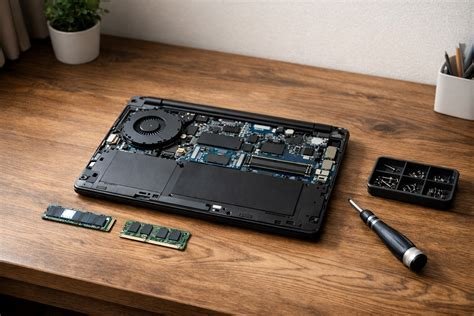
If your laptop still has a traditional spinning hard drive (HDD), this is the fix. Swapping it for a solid-state drive (SSD) is the single biggest performance upgrade you can make — boot times drop from minutes to seconds, programs launch instantly, and the whole machine feels a decade newer. A 500GB SSD costs £30–£40, and on most older laptops the swap takes twenty minutes with a screwdriver and a YouTube tutorial. I’ve done this on £150 laptops and had people ask if I’d bought them a new machine. Read our full breakdown of what an SSD is and whether you should upgrade for the details, including how to clone your existing drive so you don’t lose anything.
What about more RAM? If your laptop has 4GB of RAM, bumping it to 8GB helps noticeably with multitasking. It’s cheap (£20–£30) and easy on most older models. Beyond 8GB, most everyday users won’t feel much difference. Check your laptop’s manual or the manufacturer’s site for the maximum it supports — some ultrabooks have soldered RAM that can’t be upgraded at all.
The software refresh: when a clean install is worth it
Years of updates, half-removed programs and accumulated cruft slow Windows down in ways no tweak fully fixes. A fresh install of Windows or macOS — wiping everything and starting clean — restores that out-of-the-box snappiness. It’s a faff (back up everything first), but for a laptop that’s been running the same install for five years, it’s transformative. Windows 11 has a “Reset this PC” option that keeps your files while reinstalling the system — a decent middle ground.
While you’re at it, check your power settings. Laptops set to “Power saver” throttle performance; switching to “Balanced” or “Best performance” when plugged in makes a real difference. And if your laptop is also running hot, that’s a performance killer too — thermal throttling slows the processor to protect it. Our guide on why laptops overheat and how to fix it pairs well with this one.
Keep it fast: the maintenance habits that matter
Once your laptop is running well, keep it that way with minimal effort:
- Restart it properly once a week instead of just closing the lid — this clears memory leaks and half-stuck processes.
- Keep 15–20% of your drive free.
- Don’t install every “PC cleaner” or “speed booster” you see advertised — most are useless or outright scams. Windows’ built-in tools do the job.
- Keep your operating system updated; updates include performance fixes.
- Physically clean it — dust in the vents makes it run hot and slow. A can of compressed air costs a few quid.
When it’s genuinely time to let go
If Task Manager shows your disk pinned at 100%, the SSD buying guides at Crucial explain compatibility and installation in plain terms — the upgrade we recommend throughout this article.
I’ll be straight with you: some laptops aren’t worth saving. If it’s over 8–10 years old, can’t run a supported operating system, or needs a new battery, screen and SSD all at once, the money is better put toward a replacement — possibly a refurbished laptop, which is the budget-friendly way to get something much faster. But if your machine is 3–6 years old and just feels tired, the steps above will almost certainly give it another couple of good years. That’s £500 staying in your pocket and one less laptop in landfill — a win all round.




4 Comments on “How to Speed Up an Old Laptop Without Buying a New One”