
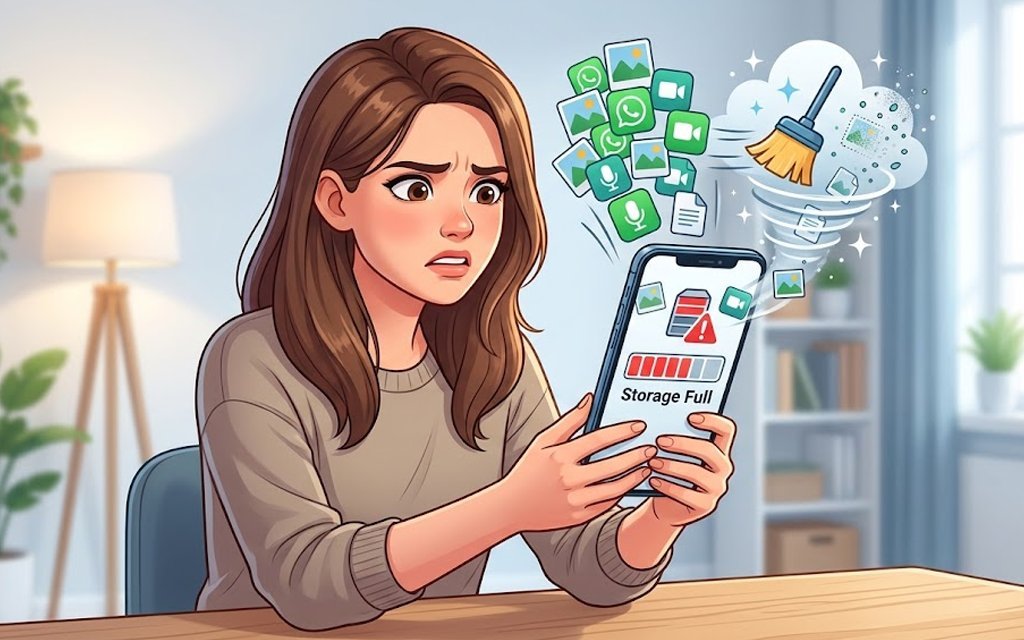
That dreaded “Storage Almost Full” message always seems to arrive at the worst possible moment — usually right when you’re trying to film your kid’s school play or snap a photo of something brilliant. And the obvious fix, deleting photos, feels awful. Those pictures are memories, not clutter. The good news is that photos are rarely the real problem. In my experience, the actual storage hogs are apps you’ve forgotten about, cached junk, downloaded files and videos you watched once. Here’s how to free up storage on your phone without deleting photos, on both iPhone and Android.
Why your phone fills up (it’s probably not your camera roll)
Before you start deleting things at random, it helps to know where your gigabytes are actually going. On an iPhone, head to Settings > General > iPhone Storage and you’ll get a colour-coded breakdown. On Android, it’s Settings > Storage. Nine times out of ten, the biggest chunks are apps and their cached data — streaming apps like Netflix, Spotify and YouTube that quietly download content, social media apps hoarding cache, and games with enormous updates. Your photos might look scary as a number, but they’re often a fraction of what WhatsApp alone is sitting on. Once you can see the breakdown, you can attack the real culprits instead of your memories.
How to free up phone storage without deleting photos: start with the easy wins
The quickest win on most phones is clearing cached data. This is temporary junk that apps rebuild anyway, so deleting it costs you nothing.
- iPhone: Go to Settings > General > iPhone Storage and tap any app. You’ll see an “Offload App” option — this removes the app itself but keeps all its documents and data. When you reinstall it later, everything is exactly where you left it. I offload apps I haven’t opened in months and routinely claw back 3–5GB.
- Android: Go to Settings > Apps, tap an app, then Storage > Clear Cache. Do this for your biggest offenders — browsers, social apps, streaming apps. If you’d rather do it in one sweep, check out our guide on how to clear the cache on an Android phone for the step-by-step.
Next, check your Downloads folder. It’s a graveyard of PDFs, attachments and installers you’ve long forgotten. Deleting those takes seconds and never touches your photos.
Offload unused apps instead of deleting them
This one deserves its own section because it’s so painless. Both iPhone and Android let you remove apps you rarely use while keeping their data intact. On iPhone, you can even turn on “Offload Unused Apps” automatically under Settings > App Store — your phone quietly removes apps you haven’t touched in ages, keeping the icon greyed out so you can tap to redownload whenever you want.
On Android, Google Play has a similar trick: open the Play Store, tap your profile, go to Manage apps & device, and sort by “Least used”. You’ll probably find apps you installed for one holiday two years ago still squatting on your storage. Be ruthless — if you haven’t opened it in three months, offload it. Your photos stay exactly where they are.
Move the big stuff to the cloud (but keep your photos local)
Cloud storage sounds like it’s all about photos, but it’s just as useful for everything else. Documents, videos and downloads can live in Google Drive, iCloud Drive or OneDrive while staying off your phone’s internal storage. If you’ve already backed up your phone photos to the cloud for free, you’ve got headroom — but don’t stop there.
One trick I use: enable “Optimise Storage” for anything that supports it. On iPhone, Settings > Photos > Optimise iPhone Storage keeps smaller previews on your device and the full-resolution originals in iCloud. You can browse every photo normally, and the full version downloads in seconds when you open one. It feels like magic the first time your storage graph shrinks by 10GB overnight. Android users get something similar with Google Photos’ “Free up space” option, which removes local copies of photos already safely backed up — your pictures stay in the cloud, viewable any time.
Hunt down the hidden storage hogs
Some apps are sneakier than others about what they store. WhatsApp is the classic offender: every video your family group shares gets saved to your phone twice (once in the chat, once in your gallery). Open WhatsApp > Settings > Storage and Data > Manage Storage and you’ll see exactly which chats are eating space. You can delete the massive forwarded videos while keeping the photos that matter. While you’re at it, turn off auto-download for media in group chats — future you will be grateful.
Other culprits worth checking:
- Streaming downloads: Netflix, Disney+, Spotify and YouTube Premium all let you download for offline viewing, and those downloads pile up. Delete watched episodes and old playlists.
- Podcasts: Podcast apps often auto-download every new episode. Switch to streaming or cap downloads to the latest two episodes.
- Messages: Years of iMessage or text threads with photos and videos add up. Set messages to auto-delete after a year (Settings > Messages > Keep Messages) — your camera roll is untouched.
- Voicemail and voice notes: Visual voicemail on iPhone can quietly accumulate. Delete old ones.
What about that “Other” or “System Data” chunk?
If you’ve ever stared at a mysterious grey bar labelled “Other” or “System Data” taking up 15GB, you’re not alone. This is system caches, logs and temporary files. A simple restart clears some of it. If it’s stubbornly large on an iPhone, backing up and restoring via a computer often shrinks it dramatically — annoying, but effective. On Android, clearing the system cache partition from recovery mode can help, though the exact steps vary by manufacturer, so check your maker’s support page first.
A 10-minute routine that keeps storage healthy
Rather than waiting for the warning to appear again, I do a quick tidy every couple of months. It takes about ten minutes: offload unused apps, clear the big app caches, empty Downloads, and check WhatsApp storage. That’s it. My phone has stayed comfortably above 20% free space for over a year now, and I haven’t deleted a single photo.
For more ways to reclaim space, see our guide on clearing the cache on an Android phone — and if you use Google storage, the Google One storage manager shows exactly what’s eating your allowance.
The takeaway? Your photos were never the problem. Phones fill up because apps are greedy and we never look under the bonnet. Spend ten minutes on the steps above and you’ll almost certainly reclaim several gigabytes — and every one of your pictures will still be right where you left it. If you ever do accidentally delete something precious, don’t panic: our guide on how to recover deleted photos from your phone walks you through getting them back.




One comment on “How to Free Up Phone Storage Without Deleting a Single Photo”