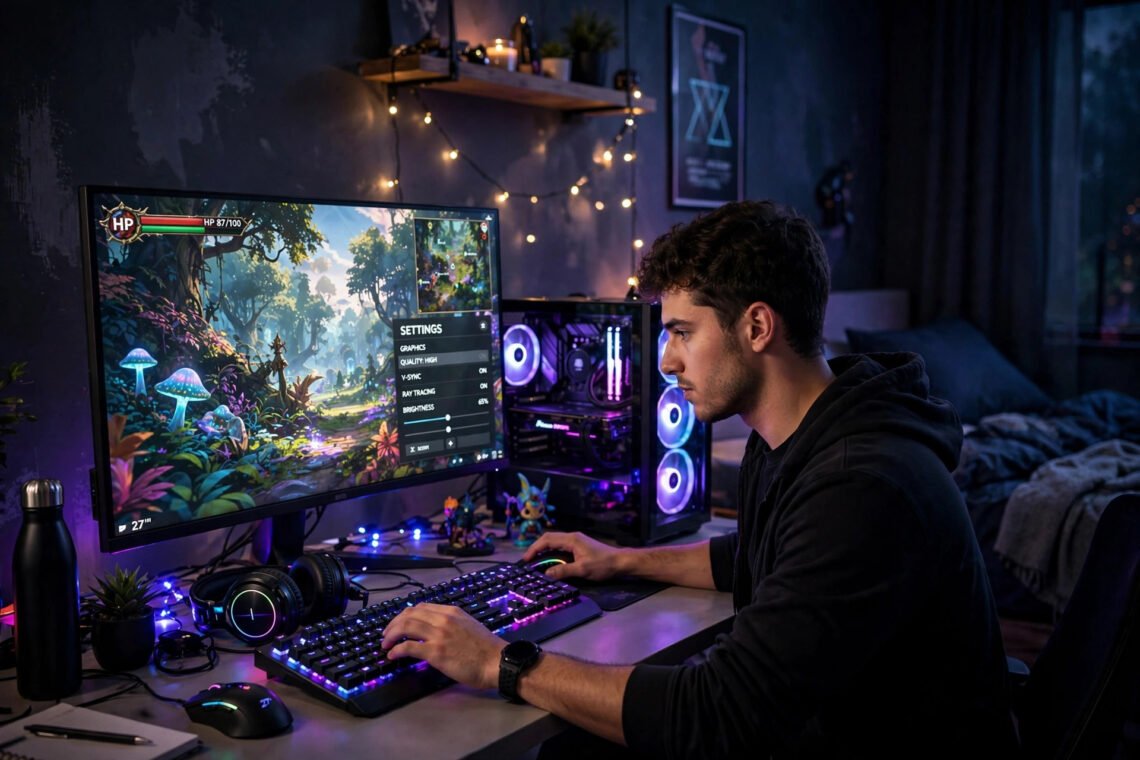
You’ve just installed a game you’re excited about. It loads, you start playing, and… it’s a juddery, stuttering mess. The frame rate chugs, the controls feel laggy, and the whole experience is miserable. Before you blame your PC or reach for your wallet, know this: most stuttery games on modest hardware aren’t a hardware problem — they’re a settings problem.
Optimising PC settings for smoother gameplay as a complete beginner is mostly about understanding five key settings and changing them in the right order. No technical background needed. Here’s the whole thing, plain English throughout.
Before You Touch Anything: The 2-Minute Health Check
First, rule out the simple culprits. Close background apps — browsers with 40 tabs, Discord overlays, and recording software all steal resources. Check your power plan: on Windows, Settings → System → Power should be on “Best performance” when gaming (laptops especially default to power-saving modes that throttle your hardware). Update your graphics drivers — NVIDIA GeForce Experience or AMD Adrenalin both offer one-click updates, and new drivers routinely add 5–15% performance in recent games.
Also check temperatures: a PC choked with dust overheats and slows itself down to cope. If your fans sound like a jet engine, a £5 can of compressed air may be the best upgrade you’ll ever buy. The BBC’s technology coverage has noted how many “slow PC” complaints trace back to heat and bloatware rather than hardware age — and the UK games industry body Ukie regularly highlights how optimisation, not just hardware, shapes the player experience.
The 5 Settings That Matter Most (In Order)
1. Resolution — the biggest lever
Resolution determines how many pixels your PC renders, and it’s the single biggest performance factor. Dropping from 1440p to 1080p can nearly double your frame rate. If your monitor is 1080p native, run at 1080p — running below native looks blurry, but a smooth blurry game beats a sharp slideshow. Always set this first.
2. Upscaling (DLSS/FSR/XeSS) — free performance
Modern upscaling renders the game at lower resolution then intelligently reconstructs the image — often with better visual quality than native rendering plus 30–70% more frames. If your game offers DLSS (NVIDIA), FSR (works on any card), or XeSS, turn it on — “Quality” mode first, dropping to “Balanced” if needed. This is genuinely close to free performance; there’s rarely a reason not to use it in 2026.
3. Shadows — the silent frame-killer
Shadow quality is disproportionately expensive for how little you notice it mid-game. Dropping shadows from Ultra to Medium/High typically gains 10–20% performance with barely visible difference during actual play. Nobody ever lost a firefight because of slightly softer shadows.
4. Anti-aliasing — smooth edges, moderate cost
Anti-aliasing smooths jagged edges. If you’re using upscaling (above), it often includes its own anti-aliasing — running both wastes performance. With upscaling on, set AA to low or off. Without upscaling, TAA or FXAA at modest settings is the efficient choice.
5. View distance & effects — tune to taste
View distance, particle effects, and post-processing (motion blur, depth of field) vary wildly by game. General rule: effects you don’t consciously notice during play go down first. Textures, interestingly, can often stay High — they mostly cost video memory (VRAM), not speed, so if you have 6GB+ VRAM, keep textures up while dropping the expensive stuff.
The Settings You Should Leave Alone
Beginners often “optimise” things that don’t help: disabling Windows visual effects (negligible gaming impact), “game booster” software (mostly placebo, sometimes harmful), overclocking (real gains but real risks — not a beginner activity), and registry tweaks from YouTube (a minefield; one bad edit causes more problems than any setting fixes). General PC speed-up principles apply too — a clean, cool, updated system is the foundation everything else builds on.
Windows Settings Worth Changing Once
Three set-and-forget tweaks: enable Hardware-accelerated GPU scheduling (Settings → System → Display → Graphics), turn on Game Mode (Settings → Gaming — it prioritises game resources), and set your monitor’s refresh rate correctly (Settings → Display → Advanced — many 144Hz monitors ship running at 60Hz, and owners never notice). These take five minutes total and benefit every game.
When Settings Aren’t Enough: The Honest Upgrade Path
If you’ve optimised everything and games still struggle, the bottleneck is usually the graphics card. Before spending: check whether your CPU or GPU is maxed out (Task Manager → Performance during gaming tells you). GPU-bound? A used previous-generation card (£150–£250) transforms 1080p gaming. CPU-bound on an ancient processor? That’s a bigger conversation. And an SSD upgrade won’t raise frame rates but will slash loading times — the cheapest quality-of-life upgrade in PC gaming.
Keeping the Cost Down: The Patient Gamer’s Playbook
However you choose, timing your purchase saves real money. Console prices follow a predictable rhythm: bundles improve around Black Friday, January sales clear stock, and new colour variants or bundles often launch in autumn. Buying a console with two bundled games effectively discounts the hardware by £80–£100 versus buying separately.
On the software side, patience is even more lucrative: major releases typically drop 30–50% within six months, and subscription services mean you may never need to buy at full price at all. The BBC’s gaming coverage tracks the market’s seasonal patterns — but the simple rule holds: unless it’s a day-one must-play with friends, waiting two months halves the cost. Set up price alerts, buy pre-owned from reputable retailers (discs don’t wear out), and let the impatient fund the industry while you play the same games for half the price.
Key Takeaways
- Resolution is the biggest lever: dropping 1440p → 1080p can nearly double frame rates — set this first.
- Enable upscaling (DLSS/FSR/XeSS): 30–70% more frames for minimal visual cost — the closest thing to free performance in 2026.
- Drop shadows before anything else: 10–20% gains with barely visible difference during actual play.
- Leave alone: registry tweaks from YouTube, “game booster” software, and overclocking — risk without beginner-appropriate reward.
- Three one-time Windows fixes: GPU scheduling on, Game Mode on, and monitor refresh rate set correctly (many 144Hz panels ship at 60Hz).
The Bottom Line
Smoother gameplay as a beginner comes from: closing background apps, updating drivers, setting the right resolution, enabling upscaling, dropping shadows first, and leaving the risky tweaks alone — plus three one-time Windows settings. Work through them in order and most stuttery games become smooth without spending a penny. The hardware you own is almost always better than its default settings suggest.
Frequently Asked Questions
What PC setting affects FPS the most?
Resolution — it’s the single biggest factor. Dropping one resolution step (e.g., 1440p to 1080p) can nearly double frame rates. After that, upscaling tech (DLSS/FSR) and shadow quality are the next biggest levers.
Should I use DLSS or FSR?
Use whichever your game and card support — DLSS on NVIDIA cards, FSR on anything. Both give large performance gains with minimal visual cost. “Quality” mode is the best starting point; drop to “Balanced” if you need more frames.
Does Game Mode in Windows actually help?
Modestly — it prioritises CPU/GPU resources for the game and reduces background activity. It’s free, harmless, and worth enabling, but don’t expect miracles; the in-game settings above matter far more.
Why is my game stuttering with good FPS?
Stuttering with high average FPS usually means inconsistent frame times — often caused by shader compilation (common in new games; it settles), background apps, thermal throttling, or running from a slow hard drive instead of an SSD.
Do I need to overclock for smooth gameplay?
No — not as a beginner. Modern optimisation (upscaling, sensible settings) delivers bigger, safer gains. Overclocking offers single-digit percentage improvements with real risks of instability; revisit it only once you’re comfortable with the basics.